Setting up a Le Potato as a Headless Server
Due to the Raspberry Pi shortage, I picked up a Le Potato from Libre Computer. My intent is to use this for my k3s cluster.
Setting up the SD card
- Go to the Downloads page for the AML-S905X-CC (Le Potato): link
- For headless I picked the Raspbian lite image:
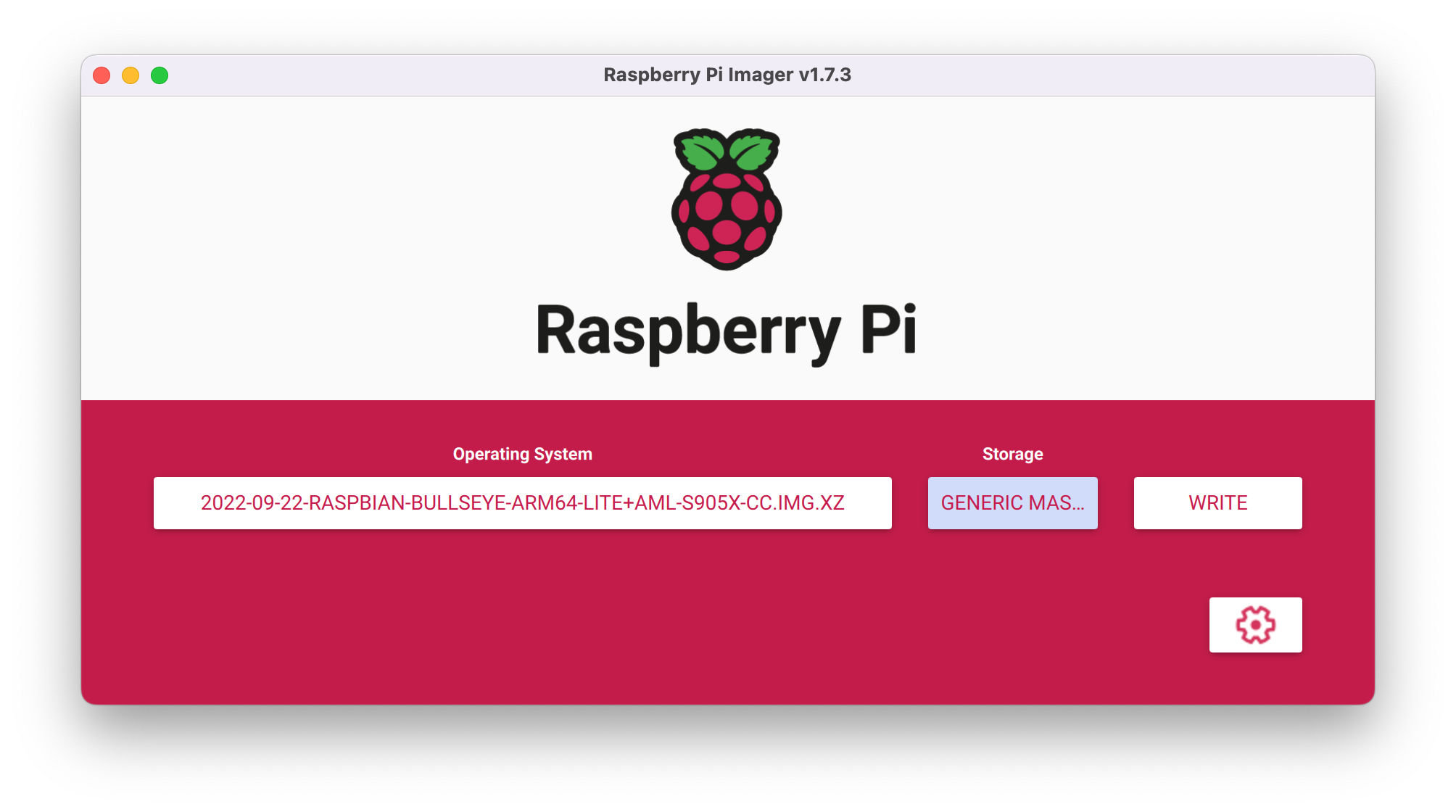
2022-09-22-raspbian-bullseye-arm64-lite+aml-s905x-cc.img.xz - Use the Raspberry Pi Imager to flash the microSD card
- Set the Operating System to the image you downloaded above
- Set the storage to your SD card
- Click “Write”
Enabling SSH and user
To enable SSH, create a blank file called ssh:
# Change directory to the mounted SD card, mine is called "boot"
cd /Volumes/boot
touch ssh
To create a default user, create a file userconf.txt and
cd /Volumes/boot
touch userconf.txt
Then add one line containing the user details of the form username:encrypted-password.
To get the encrypted password, you need to run the following on (I’ve found that I could only get the command to work on another Raspberry Pi): openssl passwd -6.
For example:
echo 'mypassword' | openssl passwd -6 -stdin
# returns: $6$Y6OGrzgg/aeEMTZc$bmopwLo9vbb1.GOaXOGwdNC0cR3tT8XpvT.yB96j9JgUkqZ5OJE5F.jiC6Ud1ZQtL3kp.wu4gJE/UxdwDKagT0
So, to create a user pi with the password mypassword, the contents of userconf.txt would be:
pi:$6$Y6OGrzgg/aeEMTZc$bmopwLo9vbb1.GOaXOGwdNC0cR3tT8XpvT.yB96j9JgUkqZ5OJE5F.jiC6Ud1ZQtL3kp.wu4gJE/UxdwDKagT0
Now, eject the card and insert it into the board.
Logging in
To find the correct IP address, I logged into my router and looked for the raspberrypi in the settings. This was pretty easy as I only had a couple IPs associated with wired hosts.
ssh pi@192.168.0.100
# Then enter the password you set above
Changing the hostname
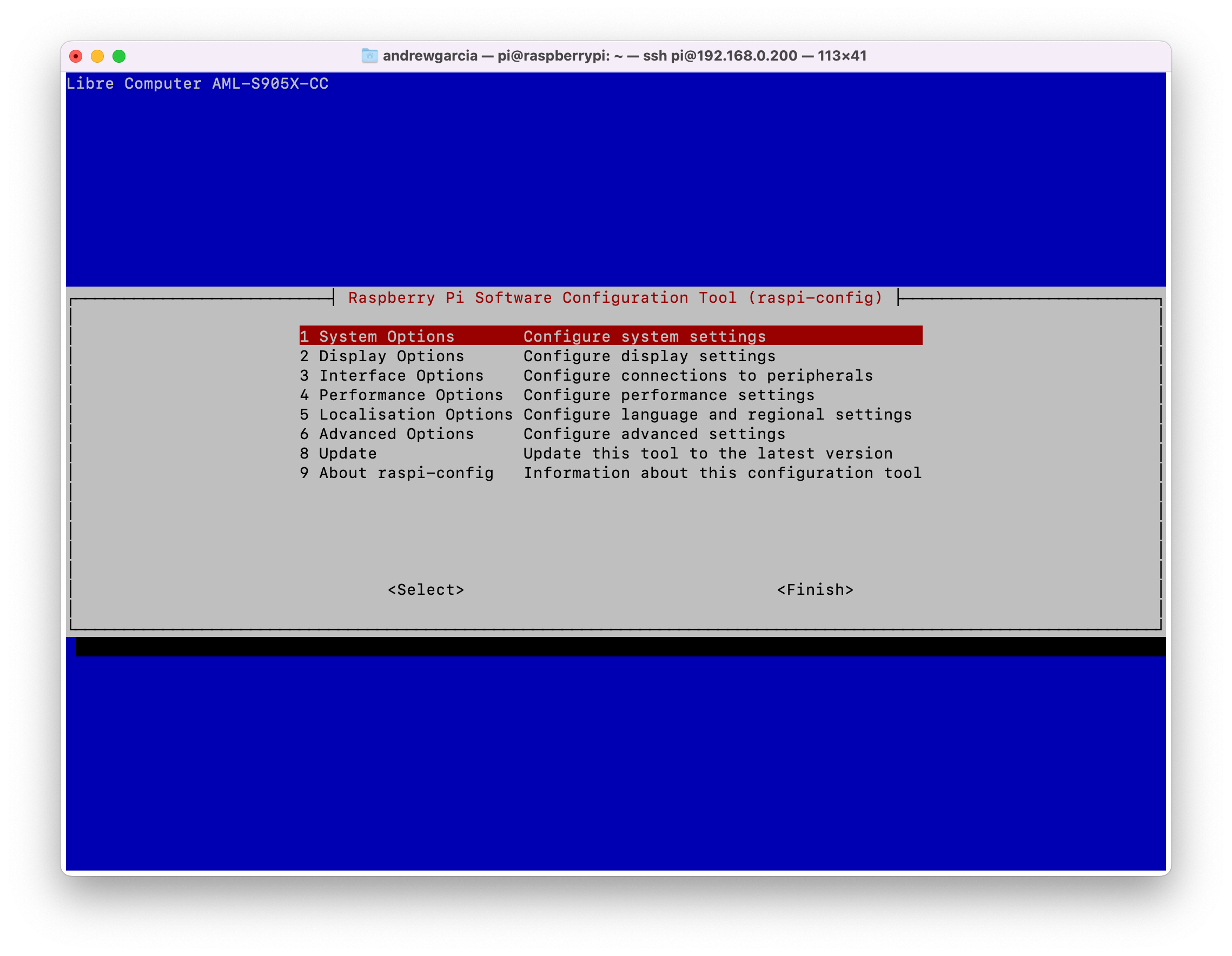
sudo raspi-config
This will bring up a GUI of options
- Select
1 System Options - Select
S4 Hostname - Set your desired hostname
- Select “Finish”
- Select the option to reboot your board
Now you can ssh as pi@<hostname>.local.
Enabling ssh keys
Instead of logging in using a password, you can use an ssh key. If you haven’t created an ssh key, follow these instructions.
Now, use ssh-copy-id to copy it to the server:
ssh-copy-id pi@<hostname>.local
# This copies ~/.ssh/id_rsa.pub by default, you can use the -i option if you have a different key location
Now you can login without using a password.